SheetCrafter Guide
A reference for everything in the app — concepts, features, and tips.
Overview
SheetCrafter is a collaborative sheet builder for tabletop RPGs. Game Masters design the templates that define what a character sheet, item, or skill looks like, and players then use those templates to create and manage their own entries in real time.
You can run your own campaigns as a Game Master and join other people's campaigns as a Player, all from the same account.
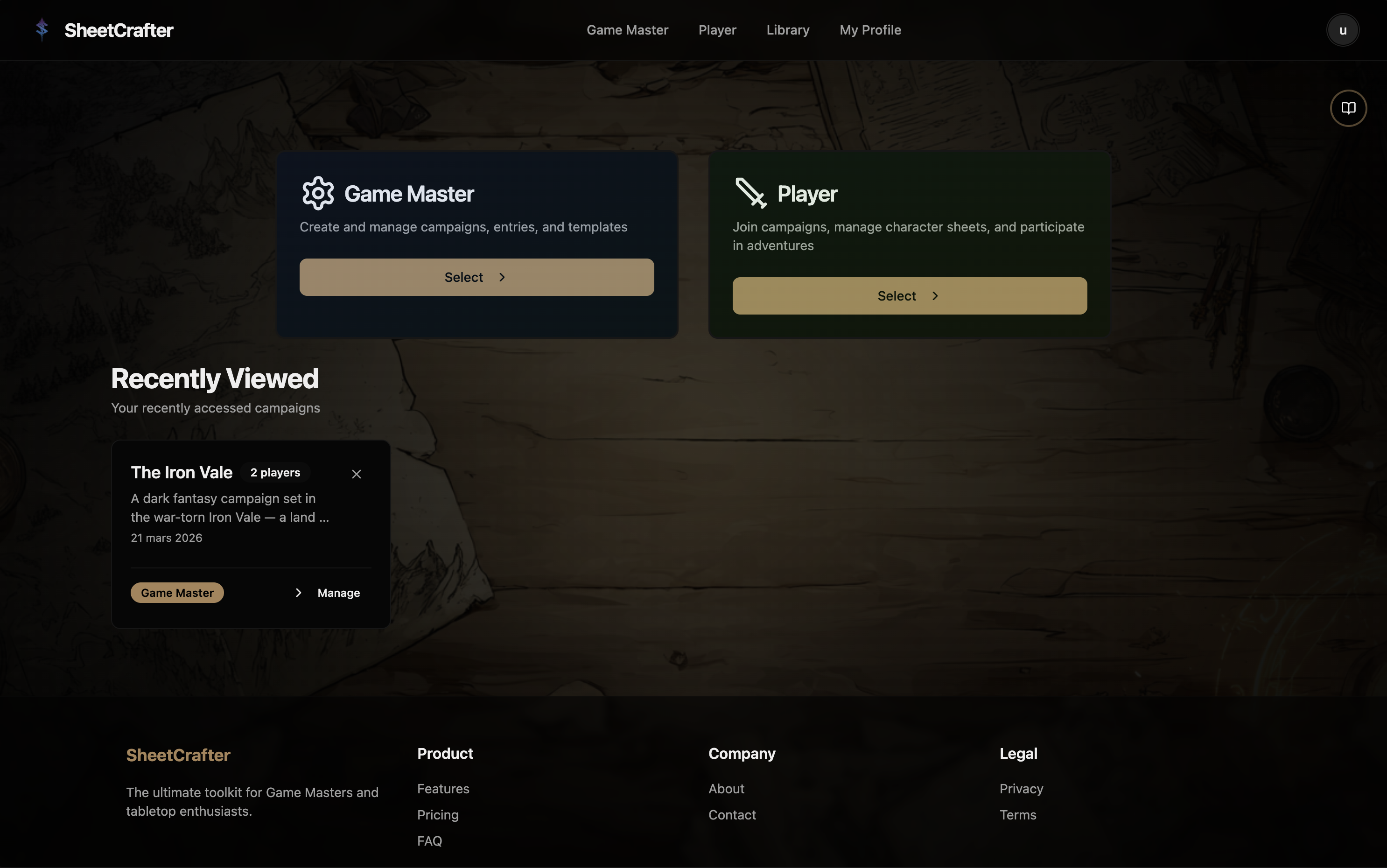
Concepts & Glossary
SheetCrafter uses a few specific terms. Here's what they mean:
Your game world. Everything lives inside a campaign: templates, codex entries, and players.
A reusable blank structure that defines what a sheet looks like and its rules. Organize templates with tags like character, object, or skill. Built once, used many times.
The campaign's living encyclopedia. Every entry, whether created by the GM or a player, lives here.
A filled-in instance of a template. When a player creates their character sheet, that is an entry.
A field that connects one codex entry to others — a character to their gear, a spellbook to its spells. Links are live: the sheet reads real values from the linked entries.
Your personal collection of templates, independent of any specific campaign. Build a template once in your Library and reuse it across multiple campaigns.
When multiple people have the same codex entry open, changes made by one person appear instantly for everyone else — no refresh needed.
Core Workflow
The full loop from creating a campaign to players filling in their sheets follows this order:
- 1
Create a Campaign
Your game world container. Give it a name and description.
- 2
Build Templates
Design the blank sheet structures players will use: characters, items, abilities, etc.
- 3
Assign Templates to the Campaign
Only templates assigned to a campaign are available inside it.
- 4
Populate the Codex
You (the GM) can pre-fill NPCs, items, and lore entries.
- 5
Invite Players
Create an invitation link and share it. Players sign in, choose to join, and then see the campaign on their Player Dashboard.
- 6
Players Create Their Entries
Players pick a template and create their sheets using your templates in the Codex.
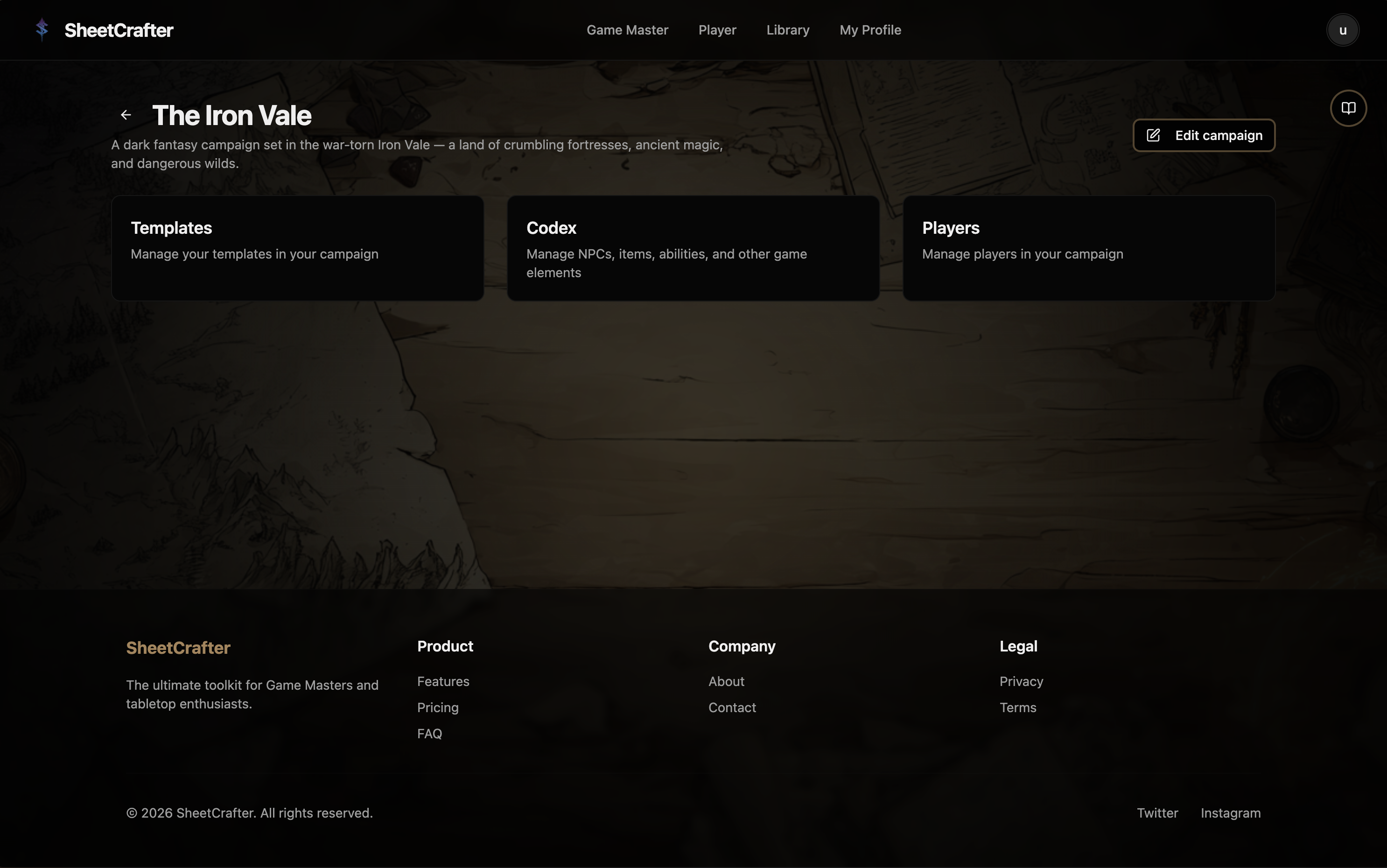
Campaigns
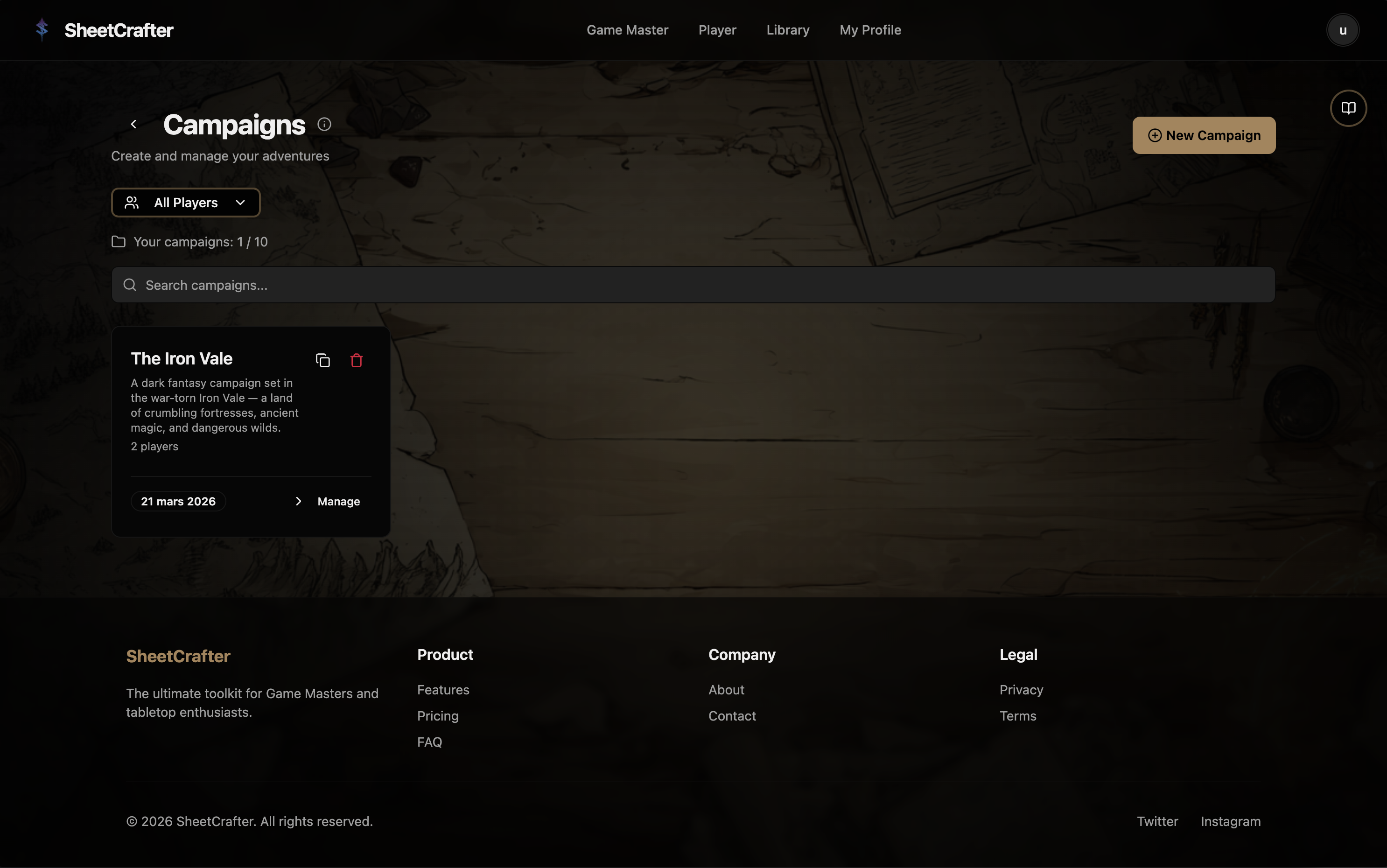
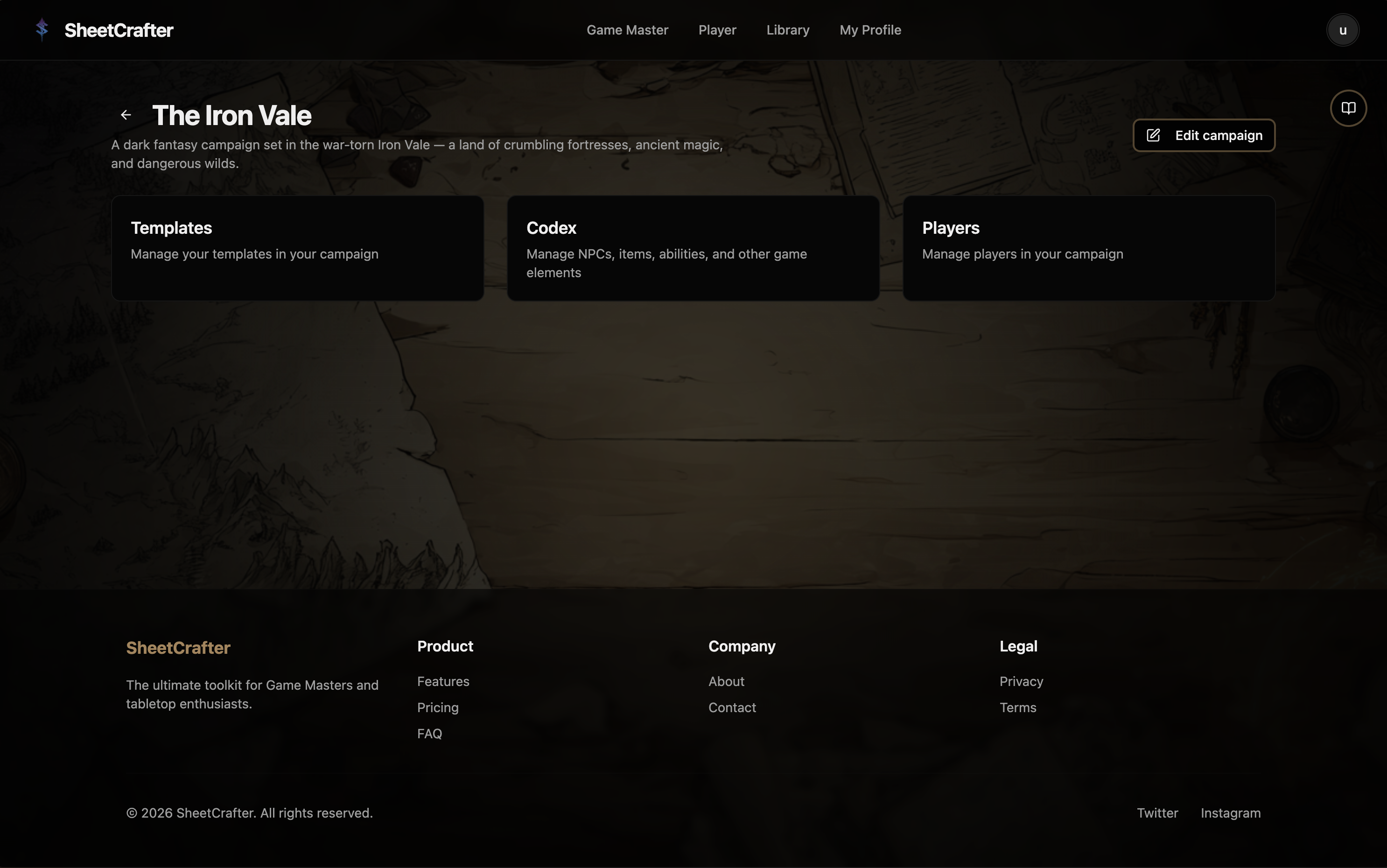
A campaign is the workspace for one game world. It holds all templates, codex entries, and players for that game. You can run multiple campaigns at once, depending on your plan.
How to use it
- From the Game Master dashboard, click Create campaign.
- Give it a name and optional description.
- Open the campaign to access its three sections: Templates, Codex, and Players.
- Edit the campaign name or description at any time using the pencil icon.
Template Editor
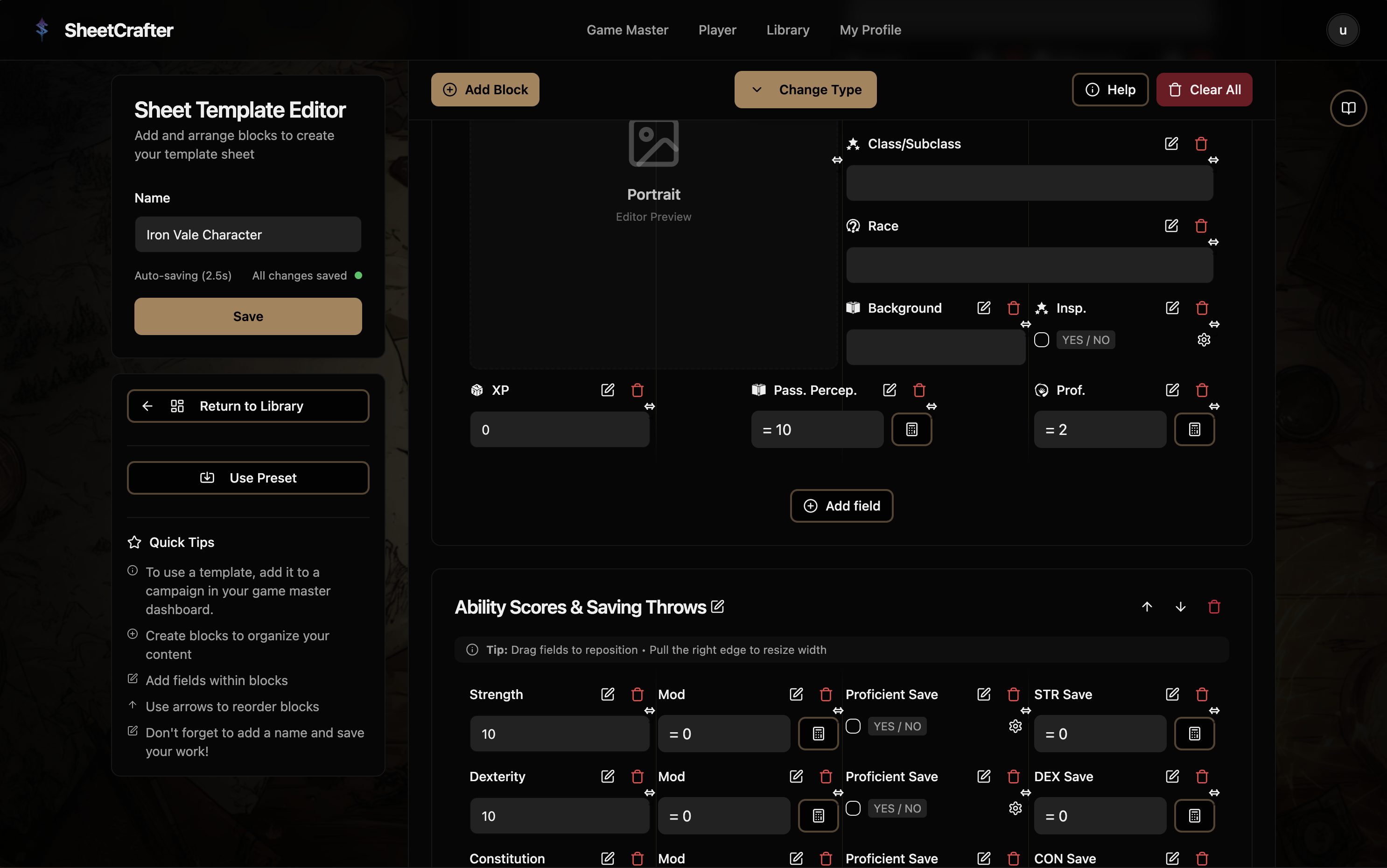
Templates are the blank structures your players fill in. You design them once and reuse them across campaigns. Use tags to organize them by purpose.
How to use it
- 1Open the Template Editor from your Library or from a campaign's Templates page.
- 2Give your template a clear name (e.g. "D&D 5e Character Sheet").
- 3Click Add Block to create a section on the canvas.
- 4Inside each block, add fields: text, number, dropdown, checkbox, and more.
- 5Drag and resize fields on the grid to arrange your layout.
- 6Use Presets to start from a ready-made layout instead of a blank canvas.
- 7Open Block options to give a block its own accent color, icon, and description.
- 8Duplicate a field or a whole block from its actions menu — formulas that reference the block's fields are remapped to the copies automatically.
- 9Use the device preview toggle to check how your sheet reads on tablet and phone widths before saving.
- 10Save when your layout is ready.
Field types
Each block can contain any combination of these field types:
A single-line text input. Good for names and short values. Supports a placeholder, a default value, and an optional character limit.
A multi-line text area for longer content like backstory or descriptions. Also supports an optional character limit.
A numeric input. Min and max bounds can be plain numbers or formulas — {Level} * 5 as a max is valid. Display it as a plain number, a bar, pips, or segments, with an optional low-value warning threshold that turns the gauge red.
A list of custom options shown as a dropdown or as pills. Each option can carry a color swatch and a numeric value that formulas can read — so a "Rage: +2" stance actually adds 2.
Two modes. Boolean mode: a simple yes/no toggle (returns 1 or 0 in formulas). Bonus mode: contributes a fixed numeric value, positive or negative, to formula calculations. Useful for modifiers like a Shield (+2) or a curse (-1).
A read-only field computed from a formula referencing other fields — including fields on linked entries. Format as a number or a signed modifier (+2 / -1), set decimals, and append a unit suffix like "ft" or "kg". See the Formulas section.
Connects this entry to other codex entries. Set the limit to 1 for a single pick, any number for a capped list, or leave it unlimited. Display links as a list or cards, then use calculated fields to combine their values.
A square image field. You can lock it so only the GM can change the image, or allow players to swap it themselves.
Entity Links
Entity Links turn flat sheets into a connected world. A character can carry items, know spells, and have allies — each link points at a real codex entry, stays up to date, and can feed values into formulas.
Setting up a link field
Add an Entity Link field in the Template Editor and choose its limit: exactly one pick (a mentor, a patron deity), a capped list (attunement slots), or unlimited (inventory). You can restrict which entries are linkable by template — an Inventory field that only accepts Equipment entries, for example.
Using linked values
The link field chooses which sheets are connected. A calculated field chooses which values to use and whether to total, count, average, or find the minimum or maximum. A calculation can add its own condition, such as using an item only when its Equipped checkbox is on. Every linked sheet participates when its required values are available to you and its condition matches.
For separate collections, use separate link fields such as Inventory, Equipped items, and Companions. Each formula can reference the collection it needs.
Display modes
The default. Linked entries as a compact row of chips — dense and scannable.
Each link as a mini-card with the entry’s image and its first key values (name, type, a stat…). Best for showcase fields like a party roster.
Video: list and cards display modes
Formulas
The Calculated field lets you write formulas that reference other fields by name. Wrap any field label in curly braces to use it: {FieldLabel}
Build a rule from equipment or effects
Open a calculated field and use Linked sheet rule. Choose a link field, how to combine its values, and the value to use. Add a multiplier for quantities, or a condition such as Equipped is checked or Duration is greater than zero. The editor describes the rule and adds it to your formula without replacing your existing work.
Defence from equipped items
{Base defence} + linkedSum({Equipment.Defence bonus}, checked({Equipment.Equipped}))Total carried weight, including quantities
linkedSum({Inventory.Weight} * {Inventory.Quantity})Strongest active effect
linkedMax({Effects.Bonus}, checked({Effects.Active}))Number of active effects
linkedCount({Effects}, checked({Effects.Active}))Each linked sheet is tested separately. A rule can total, count, average, or find the lowest or highest matching value. No matches returns zero. Conditions read values on the linked sheet itself; changing a shared item or effect updates every sheet that uses it. Use separate item sheets when each character needs their own state.
D&D functions
mod(value)Returns the D&D ability modifier. mod(10) → 0, mod(14) → +2, mod(8) → -1.e.g. mod({Strength})
proficiency(level)Returns the proficiency bonus for a given character level (2 at level 1, up to 6 at level 17+).e.g. proficiency({Level})
Math & logic functions
| Function | What it does |
|---|---|
| floor(x) | Round down |
| ceil(x) | Round up |
| round(x) | Round to nearest |
| abs(x) | Absolute value |
| clamp(x, min, max) | Constrain a value between min and max |
| if(condition, a, b) | Returns a if condition is truthy, otherwise b |
| checked({Checkbox}) | 1 when checked, 0 when unchecked, independently of any numeric bonus |
| sum(...args) | Sum of all arguments |
| avg(...args) | Average of all arguments |
| min(...args) | Smallest value |
| max(...args) | Largest value |
| pow(x, y) | x raised to the power y |
| sqrt(x) | Square root |
| sign(x) | -1, 0, or 1 depending on sign |
| coalesce(...args) | First non-zero argument |
| between(x, min, max) | 1 if x is within min–max, else 0 |
Formula examples
Strength modifier
mod({Strength})Attack bonus
proficiency({Level}) + mod({Dexterity})Armour class with clamp
clamp({BaseAC} + mod({Dexterity}), 10, 20)Attack only if alive
if({CurrentHP} > 0, {Attack}, 0)Total carried weight (via Entity Links)
{Inventory.Weight}Cross-entity formulas
Formulas can reach through Entity Link fields into the linked entries themselves. Two forms:
Bare link reference — counts the linked entries
{Party}→ 4 if four entries are linked
Dotted reference — sums a field across every linked entry
{Inventory.Weight}→ total Weight of all linked items: instant encumbrance
Traversal is one level deep: a linked entry's own link fields don't chain further. Every linked entry participates when its referenced value is available to you and it meets any condition in the calculation. An unavailable sheet or required field is omitted, including when a condition tests for zero or an unchecked checkbox. Inside one linked rule, dotted references must use the same link field. Combine rules from different collections with arithmetic, such as equipment bonuses plus active effects. Ordinary local references still read the character sheet's values.
Video: encumbrance from linked inventory
if() needed.Codex & Entries
The Codex is the campaign's living encyclopedia. Every character, item, and skill created in the campaign lives here — whether made by the GM or a player. Entries are live and editable, with changes visible to the party in real time.
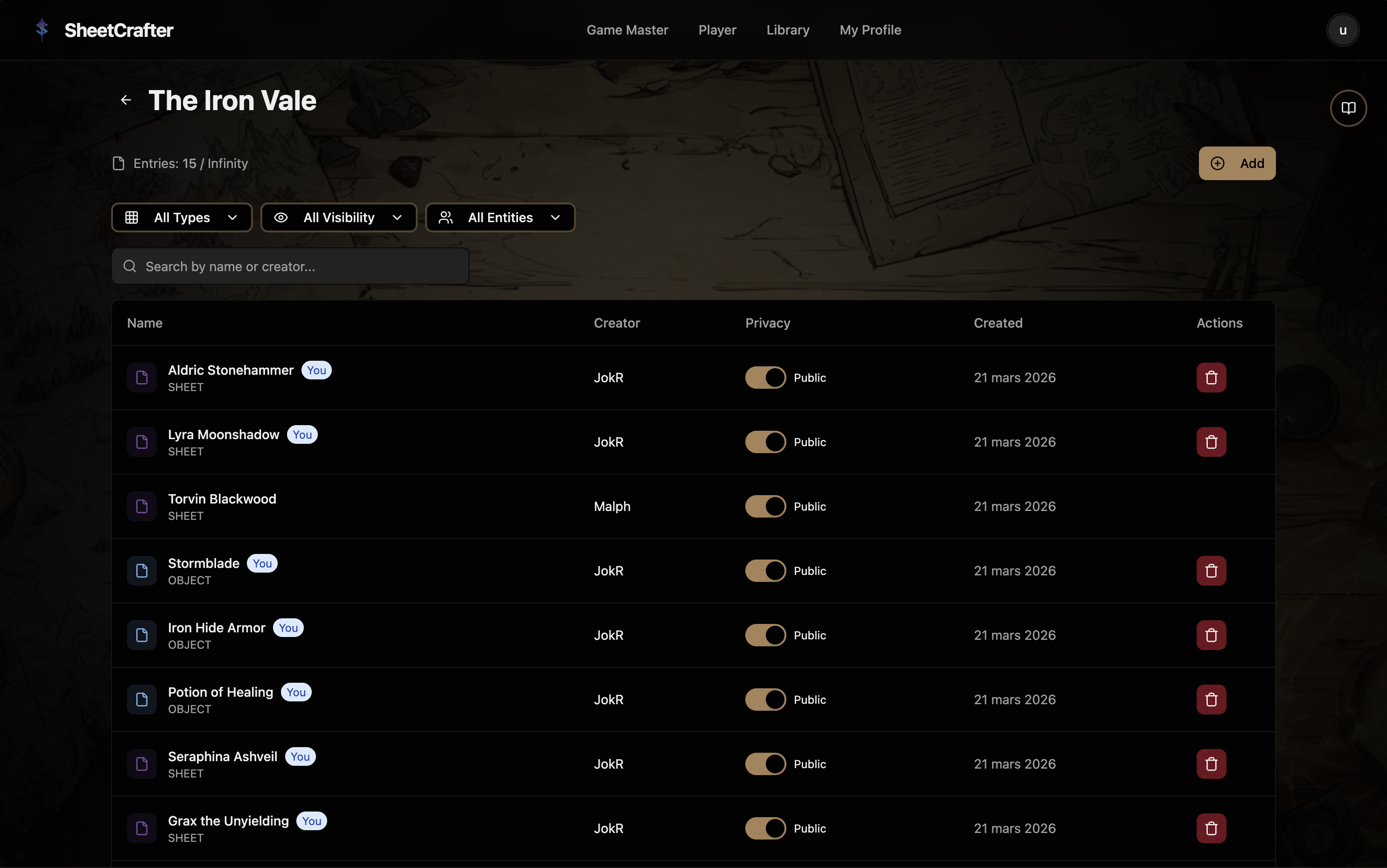
Creating an entry
- Open the Codex from the campaign hub.
- Click Create entry and pick a template.
- Name your entry, this is how it appears in the Codex list.
- Fill in the fields on the canvas in Edit mode.
- Switch to View mode to preview how it looks to others.
- Save. The entry is now in the Codex.
Privacy
Entries are private by default, only you and the GM can see them. Toggle an entry to Public if you want the whole party to have access.
Real-time sync
When multiple people have the same entry open, edits appear live for everyone, no refresh needed.
Library
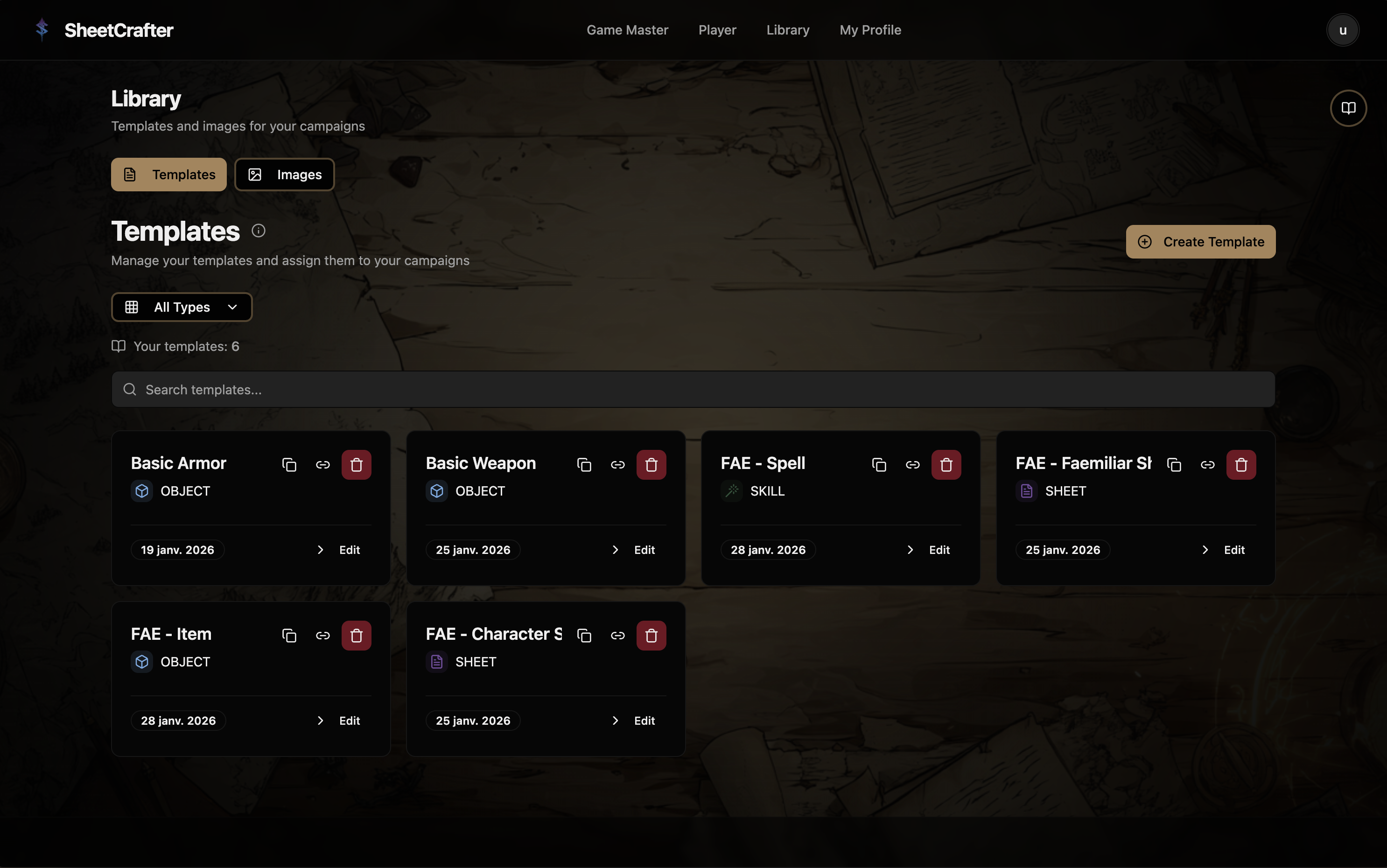
Your Library is a personal collection of templates that lives outside any specific campaign. Build a template here once, then attach it to as many campaigns as you need.
How to use it
- Open the Library from the main navigation.
- Create a new template and add tags that match your use case.
- Edit any existing template by clicking it.
- Use the actions menu to duplicate a template or attach it to a specific campaign.
Player Board
When you join a campaign as a player, the Player Board is your personal workspace inside it. Create and manage your own entries using the templates the GM has set up.
How to use it
- 1Open a campaign from your Player Dashboard.
- 2Click Create entry and choose a template.
- 3Fill in your character sheet, spellbook, or equipment list.
- 4Toggle entries between Private and Public using the visibility control on each card.
Subscription Tiers
SheetCrafter has three tiers. All core features are available on every plan — tiers expand the limits.
| Feature | AdventurerFREE | Dungeon MasterTIER 1 | Master of RealmsTIER 2 |
|---|---|---|---|
| Campaigns | 1 | 4 | 10 |
| Players per campaign | 3 | 7 | 15 |
| Entities per campaign | 250 | 500 | Unlimited |
| Storage | 10 MB | 50 MB | 200 MB |
| Image uploads / month | 5 | 20 | 50 |
| Max image size | 4 MB | 10 MB | 25 MB |
See full pricing details and billing options on the Pricing page →